WONDERS KNOWLEDGE

Games

Find Us on Facebook

Recent Post

Showing posts with label HOW TO. Show all posts

Tuesday, 19 August 2014

How to Set Up Email on a New Android Phone


Unless you rely on one of the majors like Yahoo and Gmail for email on your Android smartphone, one of the worst tasks in setting up a new device is surely configuring the email server. The key is to ignore the Android-device prompts for an automatic setup -- they won't work. Instead, plan to manually enter the data straightaway -- it's faster.


Step 1:  Open Outlook 2013 and choose the File tab. Then click or touch the Account Settings button and again, click or touch the resulting drop-down button.


Step 2:  In the resulting Change Account dialog box, double-click on the listed email account that you want to use on your phone. The account type, incoming and outgoing servers, and incoming logon information will be listed.


Step 3:  Choose the More Settings button on the dialog and then the Outgoing Server tab in order to see if the outgoing mail server is different from the incoming mail server listed in the previous step. Keep Outlook open.
Tip: Some, but not all, outgoing email servers use settings different from those of the incoming server.


Step 4:  Find the email setup area on your new Android 4.0 ("Ice Cream Sandwich") device by choosing Settings in the app drawer and then Accounts and Sync; then Add Account and then Email.
Tip: The newest Android operating system -- Android 4.4 "Kit Kat" -- sets up similarly.


Step 5:  Follow the syntax precisely to enter server data, obtained in the earlier steps, into the Android device's email setup menu. Use the Next prompt button to progress forward through screens.
Tip: Check the server syntax, password and User ID if the Android device can't connect to the server. Required ports can be found in Outlook's More Settings. Look for the Advanced tab and copy the port numbers listed there.
Pay attention to outgoing server-required SSL encryption, which will be listed in that Outlook tab too. Outgoing encryption is more prevalent than incoming.


Step 6:  On the last screen in the series of Android email setup prompts, choose the Android device's email account options such as inbox-checking frequency, default sending account, notification and syncing.

Read more ...

Monday, 18 August 2014

How to Make a Smartphone Projector for Less Than $5

There's nothing better than gathering up all the cushions, pillows, and blankets in your home and having a good ol' fashion movie night. But if you're still rocking the old 19-inch TV your parents gave you in college, you may want to upgrade to something bigger.


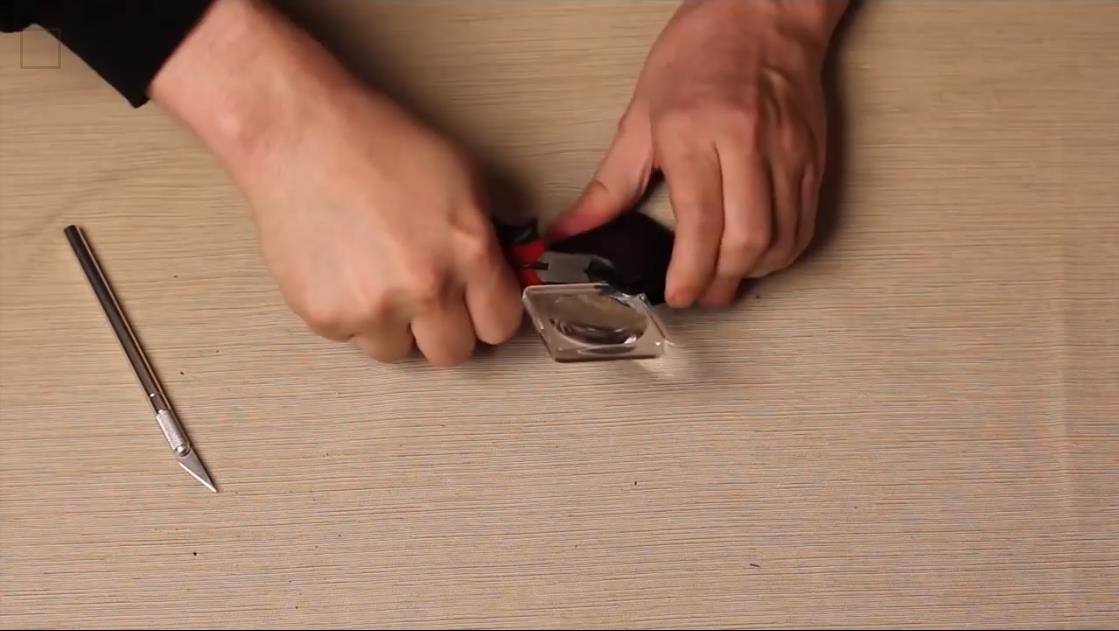
1. Get the magnifying glass out of the casing by any means necessary, which may require some pliers.


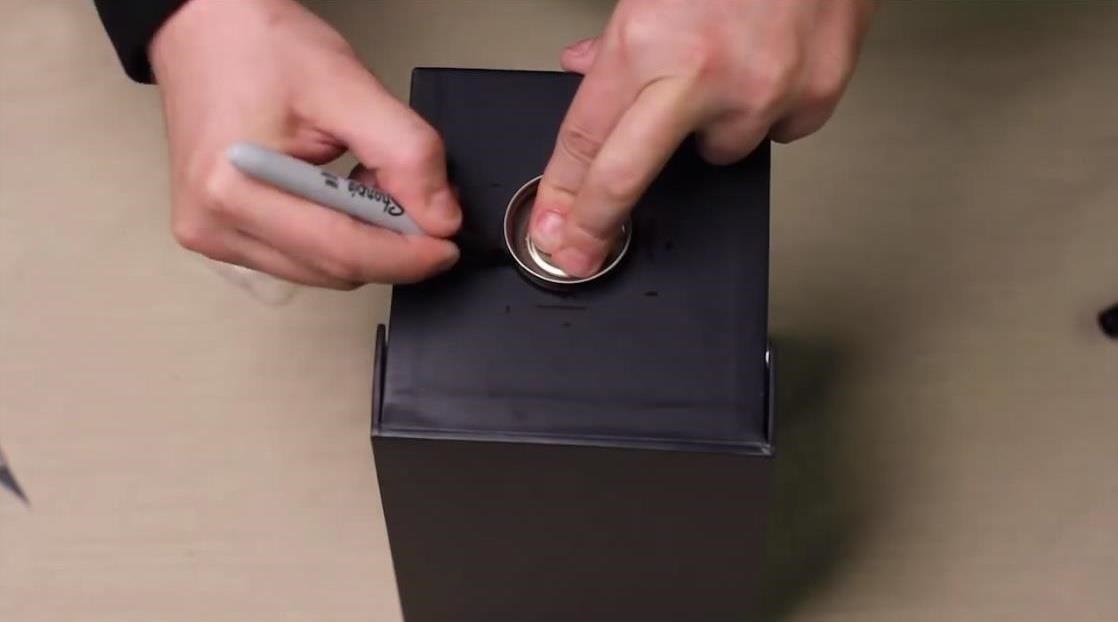
2. Line the glass up to the box, draw an outline of the glass with the sharpie, then draw an apex of each point of the outline. You could either draw out the size of the circle, or find something the same size as the magnifying glass and draw around that.


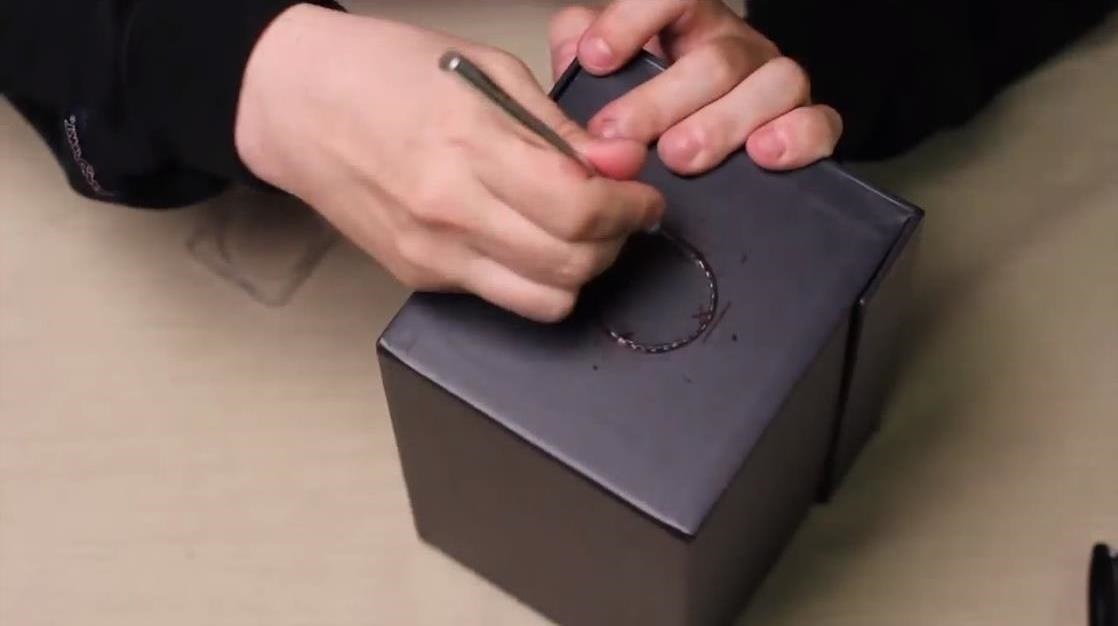
3. Carefully cut the outline of the circle out with the X-Acto knife. If your box happens to be black, you can color in the edges of the hole with the Sharpie to complete the look.


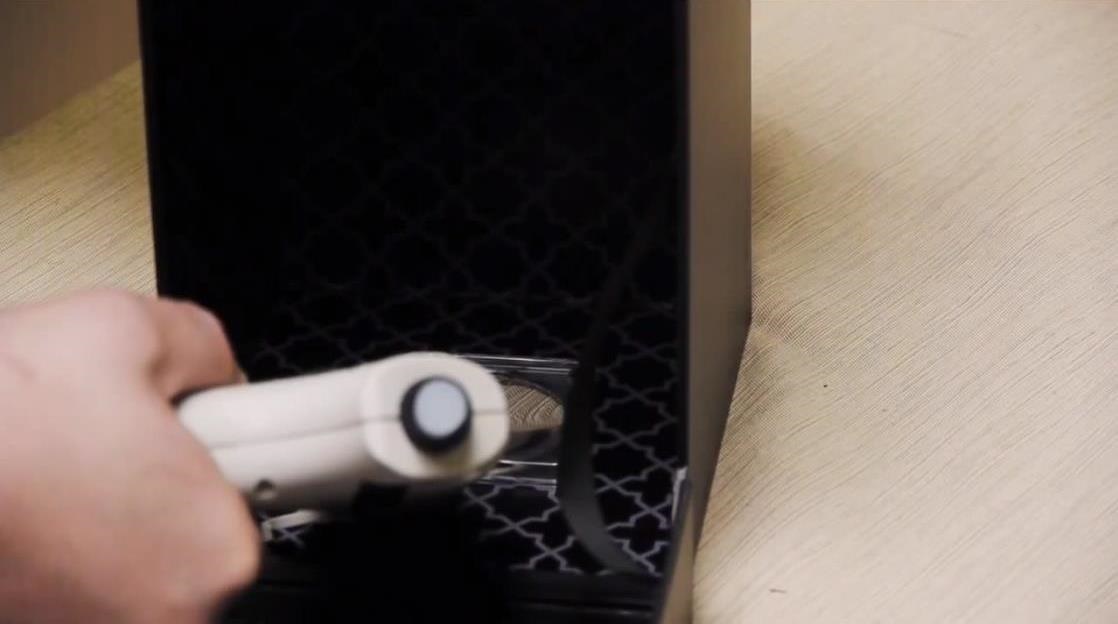
4. Place the magnifying glass in the circle on the inside of the box, making sure it is lined up perfectly with the hole, then hot-glue it in place.


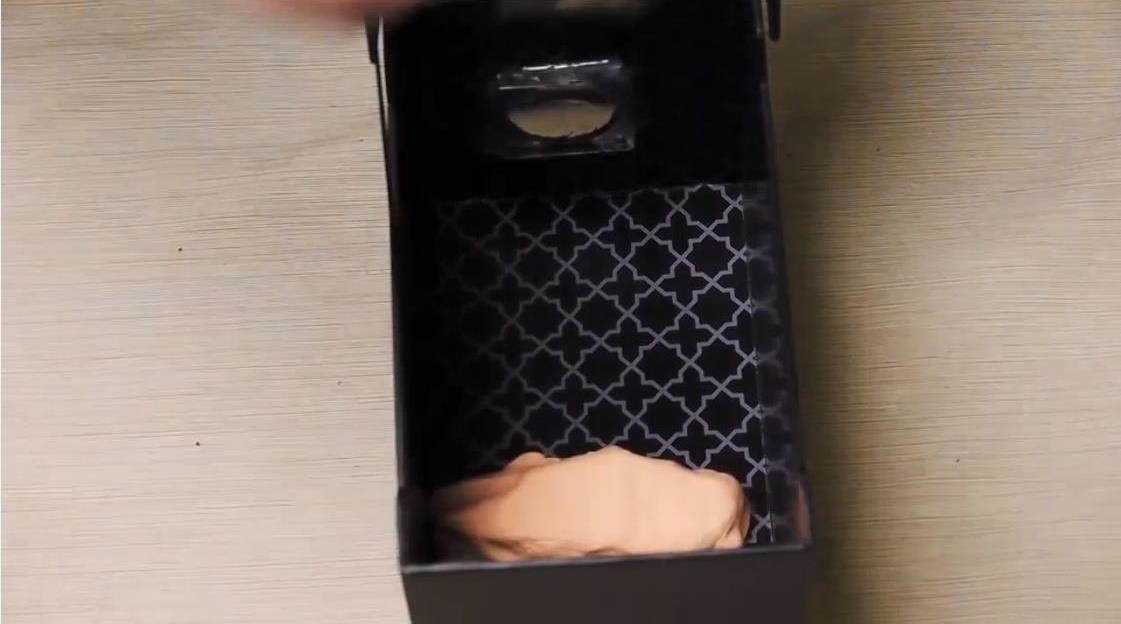
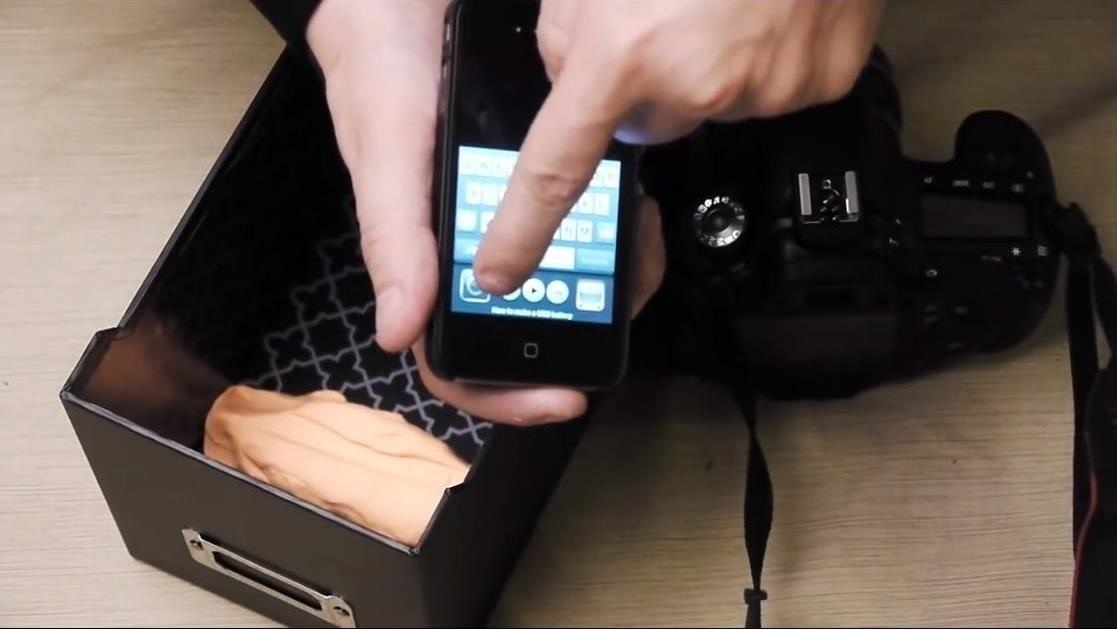
5. Position your smartphone in by setting Play-Doh along the back of the box. If you want a more permanent holder and have a spare case for your phone, you could use Sugru to attach the case in the box, and then just snap your phone in and out of the case whenever you need it.


6. Be sure the the smartphone you have has the ability to lock it's orientation, because you'll need to place it in upside-down. Most smartphones these days, whether it's an iPhone or Android device, have screen rotation locks.


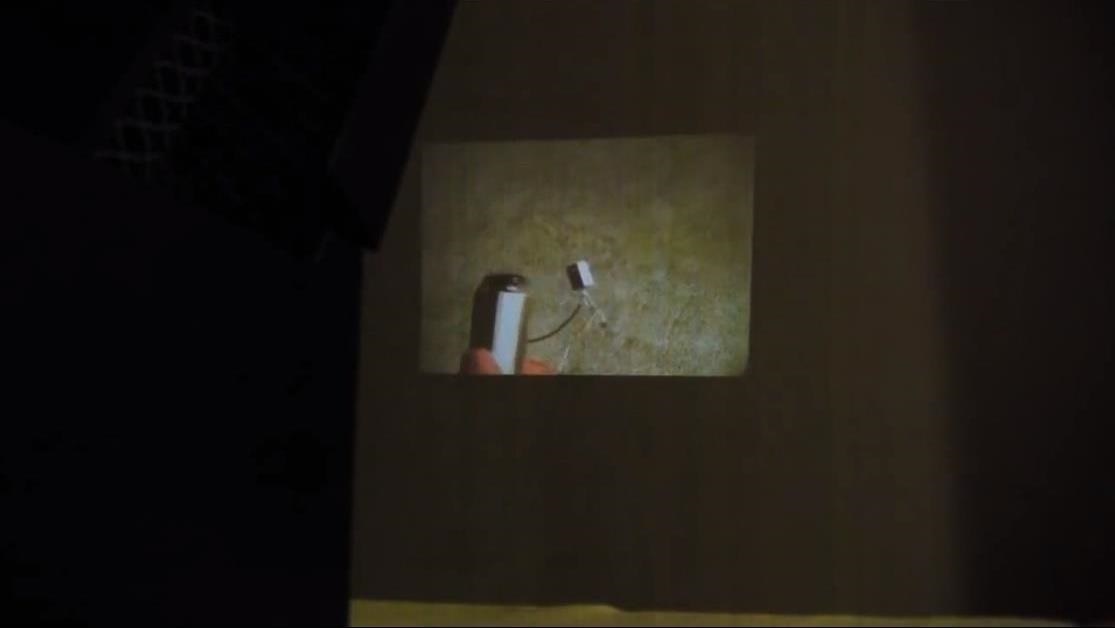
7. Play any video and enjoy your new projector!


For the best movie night experience, cut out a few holes in the back to connect to an audio cable in order to hear it from your speakers, and make sure to dim the lights. You can change focus by adjusting the position of your phone, but first try adjusting the position of the box relative to your wall.
You can also use a bigger magnifying glass for a bigger picture, as seen in this DIY guide, or you can go even bigger with a 50-inch screen and a more professional smartphone projector (though, a tablet will work better)
How'd it go for you? Snap a picture of your projector in action and share it with us in the comments below.


Read more ...

How to Import Gmail Account to Outlook.com


Are you tired of using Gmail and wants to switch to another email provider such as outlook.com. But you are afraid if you do this you will lose your contacts and messages not any more now because outlook.com has developed a tool which will import your Gmail contacts and messages into your outlook.com account and to do this we have formed an article on how to import your Gmail account to outlook.com.
In the past also Outlook has provided the import feature of moving your Gmail messages to Outlook.com but it was lagging in some features such as it was using POP 3 and a manual method to import messages and though users lose their Gmail labels but this new improved tool can convert your Gmail labels to folders.

Let’s not waste time anymore and see How to Import Gmail account to Outlook.com


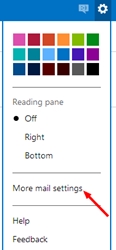
Open your existing outlook.com account or create a new one if you don’t have it, now click on the gear icon on the upper right corner of the window then select “More email settings” see figure below.
More Mail Settings

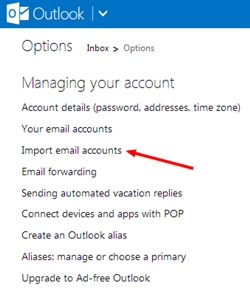
A new window will open once you have clicked on “More email settings” having different email settings options, see “Import email account” under managing your account section, see picture below.

Import your email account
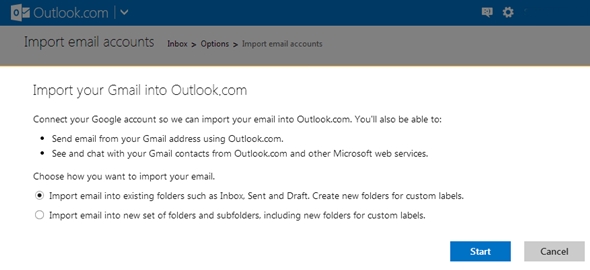
Now import account settings will open simply click on Google and a popup will open having settings of “email import”, click on option to set if you want to import Gmail emails in your existing folders such as Inbox, sent and draft plus it will create new folders for the custom labels on your Gmail account or you can import into a new set of folders, including new folders for custom labels. Now click on start to initiate the process of importing Gmail account to Outlook.com, remember once prompted for authorization to use your Google account to import authorize outlook.com

Import settings

Import can take a while, it depends upon the no of emails you have in your Gmail account. Do not panic and wait for the operation to finish. On completion you will receive a conformation email from Outlook.com.


Read more ...

How to Stop Receiving Emails from Google + Profile in Gmail

Google has rolled out a new feature in Gmail, which has changed the way of sending emails to a new level. Now your Google Plus + profile acts as your email address, people can use it and send you email directly in your Gmail Inbox. If you are not comfortable with the new Gmail, Google + email feature you don’t need to worry about because in this article we will explain how to stop receiving emails from Google + profile in Gmail but first lets us go through some of the basics on email via Google + profiles.
Some of the basics of email via Google +
Google + users can send you emails ok, that’s fine, but the interesting thing is that they will not know your Gmail email address until you reply to them. People who are not in your Google + circle (you are not following) can only email you once without your permission. Those who are in your circle emails you Gmail shows that in your ‘primary Inbox’ else if any outsider emails, email go to your social Inbox.

How to stop receiving emails from Google + profile in Gmail


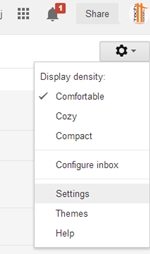
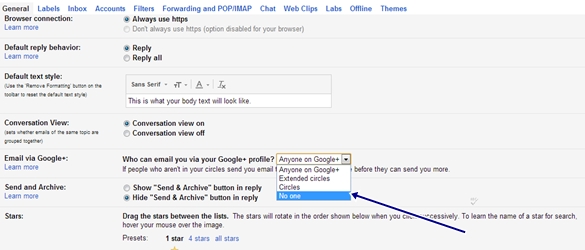
If you don’t want anyone to send you emails using your Google + then you need to do a few things to stop receiving emails from Google + profiles in Gmail account. There is a gear icon in the top-right hand corner of Gmail accounts, open it a list will open, select settings from there now scroll down the page till you see settings for “Email Via Google +” heading. Now choose ‘No one’ from the dropdown then scroll down to the bottom and click “save changes”. Remember this ‘email via Google +” is enabled by default.
Select settings

Email Via Google settings
There are other options too in ‘Email via Gmail’ feature as you can see in the above picture, depending upon your preference choose it.
Read more ...

Sunday, 3 August 2014

How to Run Android Games on your PC


If you are searching for how to play Android games on your computer?Then you have come to the right platform. Android is one of the most popular and emerging operating system. Android is popular due to its freedom and high quality games and apps. In free time,users enjoy to play games on their operating system.
Smartphones with Android OS are not cheap. If you found any Android enabled smartphone for low price the reason for its can be the specifications. Samasung Galaxy SIV is up to date Android Smartphone having a whooping 2GB RAM. While cheap Androids have RAM less than 256 MB and their OS is also old,probably Android Froyo or lower.
On such type of cheap Android Smartphone you will unable to run games like Temple Run,Angry Birds Space and other alike games. If you can’t afford to buy a Android Smartphone with up to date specifications and you want to enjoy the games and apps of Android,then you don’t have to worry. We have a solution for you.
You can now run any Android game on your computer by simply installing a program called“BlueStacks”.
So today,I will give you a step by step tutorial so you will be able to run almost every Android game on your computer without any trouble.

Step 1: Installing BlueStacks:

  • Download Bluckstacks by clicking here.
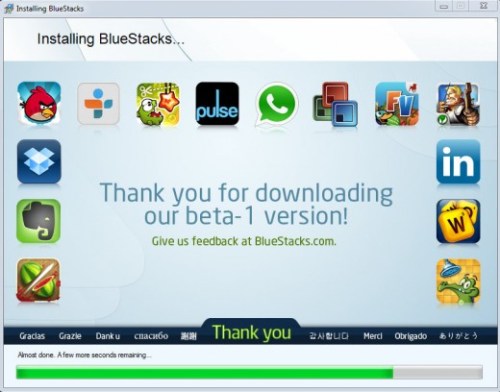
  • After the download,run and install Bluestacks.
  • Everyone of you know how to install a program on your computer,so I am not going to tell you how to install Bluestacks.
Run android game on computer
Things you should remember before installing Bluestacks is that you should be connected to the internet. Bluestacks requires key components,after downloading the key components,Bluestack will install application on your computer.

Run android game on computer

Step 2: Searching the required game:

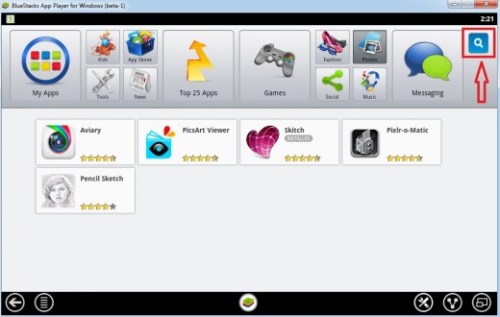
After complete installation,Bluestacks will take you to its home screen where you will find your installed games.To search game click on the magnifying glass icon as mentioned below in the picture.

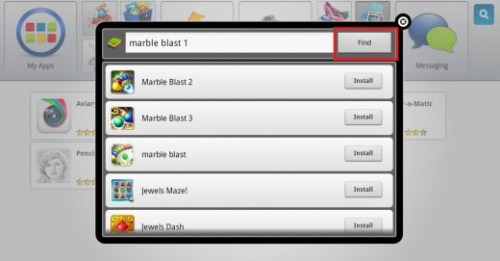
By clicking on the magnifying glass a pop up box will appear where you can type the game you are looking for and hit the“Find”button(picture below).


Step 3: Installing Android Game on Your Computer:

After you have searched and found your required game,just click on the“Install”button and the game will be downloaded on your computer. You will not have to select the location to install game,Bluestacks will automatically download and install Android game on your computer.

Step 4: Running Android Game on Your Computer:

  • To run Android games on your computer,follow the steps mentioned below:
  • Go to Bluestacks home screen.
  • On top left you will find“My Apps”tab.
  • Click on it.
  • You will see a list of your installed Android games on your computer.
  • Double click on the Android game you wanted to run on your computer.

Final Words:

Bluestacks is an easy to use application that will run Android games on your computer. Remember that Android game can crash while loading. That’s because Bluestacks is still in its beta version and developers will take sometime to release the bug free version of Bluestacks.


Read more ...

How to Block Websites in iPhone or iPad


Parents are constantly odd about their children’s activity on the iPhone and iPad mostly when they are browsing the websites. Thanks to the new feature of iOS 7 which allows to buck and restrict internet sites. In this tutorial we will steer you how to block websites in iPhone or iPad.


How to Block Websites in iPhone or iPad


You require to have iOS 7 installed on your device because this website restriction is the feature of iOS 7.

Spread out the settings page >> General >> restriction. Set up the passcode if it is not being set before. Enter your passcode to continue the operation.

Now see the box named Allowed content and click on the websites which is placed under it. You will have now three choices to block sites.


  • All websites: it will block the all websites which are found on the internet. This selection is utilized when you do not desire anyone to browse any sites on your iOS 7 devices.

  • Limit Adult Content: it will block those sites which contain adult content.

  • Specific websites only: this option will block all websites, but only allows you to browse thorough specific websites which are set by you. Whenever you open your Safari browser it will show the thumbnail of the websites which are allowed to browse.

Now it is up to your preference what option of these three you like to set in your iPhone and iPad.


What if somebody attempts to open a block website?


If anyone will try to open a block website he/ she will see a web page saying “you cannot browse “sitename” because it is restricted”. If you wish to view the block website, click on Allow website and now you have to enter the passcode to continue. This works on almost all browsers in your iPhone and iPad.


Read more ...

How to recover deleted photos from a memory card

 how_to_recover_photos_from_an_sd_card.jpg


The modern age is epitomised by our daily consumption and creation of digital content. If that includes photos, videos and software, then the question of storage arises - to keep the stuff you want to save.

While the ever-burgeoning and wallet-breaking demands for more and more storage - to keep all the content we want for posterity or easy-access - are not to be ignored, here we concentrate on how to deal with the possibility of data loss, a fate that some would liken to a mugging or even a lobotomy.

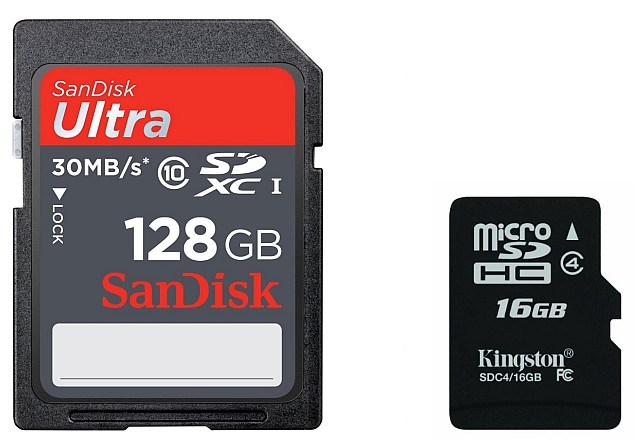
An example of such a painful situation, is the loss of photos from the now-ubiquitous form of flash storage - the SD card, which we all use on our cameras or mobile phones (in the smaller microSD card form).

This article may be a lifesaver for those readers who have managed to accidentally delete their SD card data, or been the victim of the not-as-uncommon-as-we-would-like SD card corruptions.

This is actually not a very big deal, and there are a lot of useful tools online. The Web however, is a veritable minefield of scams and/ or paid data recovery software, designed to either fleece, or steal. This guide teleports the readers to the end of the minefield, safely avoiding the danger, by recommending the free software required to bring back lost data from limbo.

We will be recommending PC software here, to help readers recover data from their SD cards. If after connecting the camera, or mobile phone to a computer, the storage on it is not read like a separate drive, users may be required to remove their SD cards from their cameras or mobile devices, and connect them to their PCs via a memory card reader (a laptop built-in card reader on a will also do the trick, though an microSD to SD card adaptor may be required).

The readers should in any case remove the affected SD cards from their cameras or mobile phones immediately, as there is a chance the device will overwrite the delete/ corrupted files when using the SD card.

It's worth noting that while the focus of this how to is SD cards, all of these software will do a great job of recovering files from any kind of media like your hard drive, external drive, thumb drive etc. 

Recuva (for Windows)

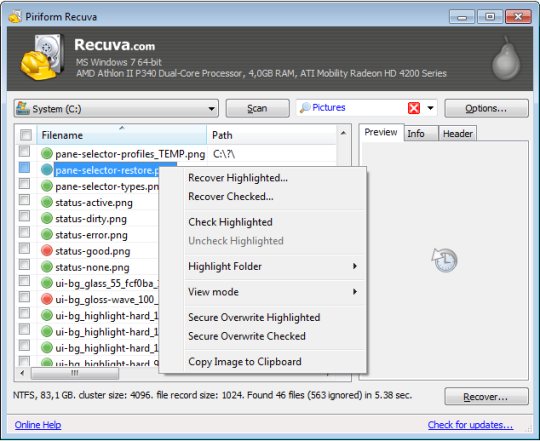
Recuva (version 1.51.1063) is a 4.02MB free download, and works with PCs running Windows 2000 or above. To recover your files from your SD card, load the card on the PC via a card reader, select the corresponding drive in Recuva's drop down menu. Run a scan via the Scan button.

recuva_cnet.jpgThe scan will return a list of files on the card, including deleted or corrupted files, and give you the option the recover the files, using the Recover button.


Pandora Recovery (for Windows)

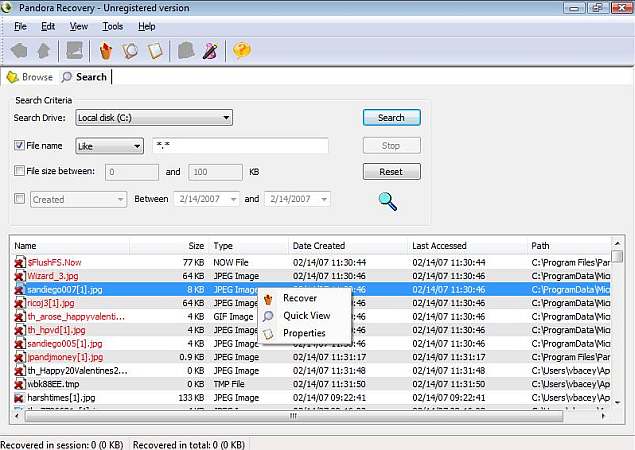
Pandora Recovery (version 2.1.1) is a free-to-use tool that is a 3.12MB download. It supports PCs running Windows XP or above. Just like with Recuva, users will need to load their SD card via a card reader, and perform either a Quick Scan or Deep (Surface) Scan to throw up results of deleted and corrupted files. The second option is for formatted memory, and while it is slower, it should turn up more results than a quick scan.

pandora_recovery_cnet.jpgUsers can then choose which files to recover from the results by right clicking. Alternatively, users can run the Pandora Recovery Wizard and follow on-screen instructions.

 We hope these tools served you well. If you have any suggestions of other data recovery methods you'd like to share with your fellow readers, please let us know via the comments.


Read more ...

Monday, 14 July 2014

How to Delete Browser History from Google Chrome


How to delete Browsing History from Chromejpg


Chrome is one of the most popular web browsers on desktop computers as well as in Android device. Web browsers keep the record of each website URL visited by user so as the case with chrome. The advantage of recording each web page is that in case you forget website URL, it can be seen from history and its disadvantage is that anyone using your computer can see what web pages you visits by going to the history section and sometime heaps of website in history can slow down browser performance. In both of these cases we have to clear browsing history. In this article we are describing you how to delete browser history from Google Chrome.

How to Delete Browser History from Google Chrome

Open your chrome browser and on the top left side there will be three horizontal lines. Click on those three lines and navigate to the history section and click on it. You can also access history by pressing Ctrl and H together.
Access History
Once you have the history page now you can delete history there are several ways of deleting history in chrome. You want to delete and particular URL click on the left side of that URL as indicated in below figure and then press button “remove selected item”. You can also use search history and then delete.
Select URL
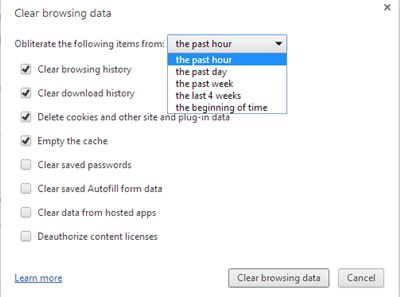
The other way to delete browsing history and the convenient one is pressed “clear browsing data” button in history page, then you will have different options to choose from. A drop down as indicated in below image shows you can delete from past hour,past day, past week, past 4 weeks and the beginning of time (will delete whole history). you can see there are other options too like “clear browsing history“, “Clear download history“, cookies etc. You can check, unchecked these all depends on you what you would like to delete. After that press “clear browsing data” button and chrome will take a few seconds to erase your browsing data.
Clear Browsing data
I hope this article has helped you in understanding how to delete browser history from Google Chrome.
Read more ...

How to Delete an Attachment and Messages from Facebook chat


Facebook undoubtedly the most popular social networking site on the net and we daily use it whatever purpose, posting on walls, updating status, Chatting with friends etc. We normally chat with two to three people in one time by having multiple chat windows and it usually happens to us by mistake we send an attachment or message to that person who was not meant for. Don’t worry, this happens as we are humans, we can easily delete that particular attachment or messages without deleting the whole chat. In this article I will explain you how to delete an attachment and messages from Facebook chat.

How to Delete an Attachment and Messages from Facebook chat

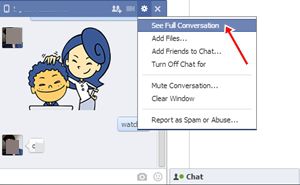
We usually chat in a popup window and to delete messages or attachment from chat we need to be in full conversation mode. Click on the gear icon placed on the corner of chat windows and click “See full conversation”. If you are already chatting with message windows you don’t need to follow above step. See the image below for reference.

See Full Coversation

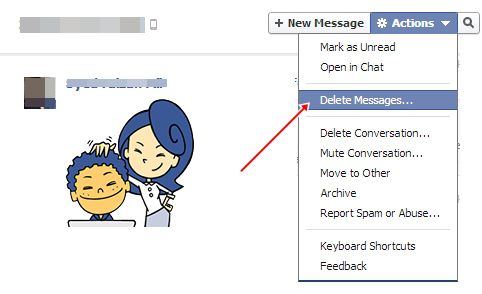
Now click on Actions Tab and select “Delete Messages” from the list. See the image below for reference.

Delete Messages

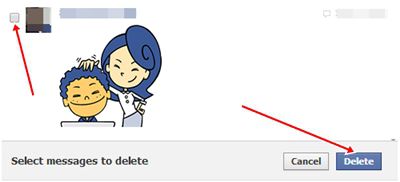
Once you have click Delete Messages you will notice a box will appear against each message and attachment you have sent. Tick the box against that message or attachment which you want to delete and then select delete button which is located along the bottom of the window.See below image for reference.

Select Check and press delete

A pop up message box will open confirming your delete operation, select delete message button to delete the selected message or press cancel if you have mistakenly selected wrong message or attachment.
Excellent you have successfully deleted a message or attachment from Facebook chat. I trust you have now found out how to delete an attachment and messages from Facebook chat.
Read more ...

How to Retrieve deleted email messages from Outlook.com or Hotmail


retrieve deleted email messages from Outlook.com or Hotmail


There is hardly can be a person in this world who using the internet but don’t have an email account. I say there is none, there is a common mistake we do is accidentally delete important emails from our email account and then regretting for our mistakes. Although most of the email providers provide a deleted folder once you delete an email it goes to the deleted folder. Emails are there in the deleted folder for a limited time and they are then deleted automatically from the deleted folder too, and it became difficult to retrieve email messages than. Never worry about because Outlook.com which was previously Hotmail has a mechanism that retrieves your deleted messages to the best of their limits. In this article we will tell you how to retrieve deleted email messages from Outlook.com or Hotmail

How to Retrieve deleted email messages from Outlook.com or Hotmail

First Step
Log in to your outlook.com or Hotmail account, then go do deleted folder, you can see the below pic to get a clear idea.
Deleted Folder in Outlook.com
Second and Last Step
On the bottom of the screen you will see a note stating “Lost a message? When you recover deleted messages, we bring back as many as we can”. Simply click on link “recover deleted messages” and outlook.com will recover your deleted messages as much as they can in deleted folder. Then you can transfer your important email to another folder of your choice such as Inbox.
Recover deleted Messages
Still unable to recover that important email which you accidentally deleted than I am afraid there is no other method available.
I hope you are now relaxed to know that how to retrieve deleted email messages from Outlook.com or Hotmail. Tell us about this article how you found it and has this method recover your deleted messages.
Read more ...

How to Remove Location Sharing From Facebook Posts


Remove Location Sharing From Facebook Posts


Have you ever thought about the content you share on Facebook, most of the people share everything on Facebook they do not though what needs to be shared or not. These types of posting some time automatically adds a common location to your Facebook posts. Those of you who do not want location sharing in this post there is a simple method to remove location sharing and today I am writing about how to remove location sharing from Facebook posts.

How to Remove Location Sharing From Facebook Posts

Login to your Facebook account and go to new post section, by default it will be showing your location as you can see the below picture. To remove it click on the pin icon and press X mark in the corner and your position will be removed from this position.
Facebook Location Sharing
To permanently remove click on the pin icon again, you will realize a cross mark (x)placed beside the pin mark. Press that pin mark and you are done.
Location removed
Several games and application on Facebook also access your location. To remove location access from them click on the cog icon placed in the upper- right corner of any Facebook page then selects settings. Now navigate to Apps section and click on it. See image below for visual reference.
Facebook App Section
In the Apps section see the division of “Apps others use” click Edit link placed on the right corner of that section. See image below for visual reference.
other App Use
Now un-tick (un-check) the box which is placed beside “my status updates” now click save changes button and you are done.
my status updates

Read more ...

How to add Privacy to Facebook Account

How to add Privacy to Facebook Account
Facebook the largest social networking site on earth gives you the pleasure of what you want to share with the worlds. On Facebook you may have thousands or more than that friend and you have your family, your boss might be there too, but you have something to share with your friends and you do not want it be read by any other person than your friends and know that the internet is full of creeps so you would like to make your Facebook profile private. We will show you today how to add privacy to Facebook account.

 How to add Privacy to Facebook Account

The first things you need to do is to login to your Facebook account. Once you are logged in, see a cog on the upper- right corner of the webpage click on that cog and choose settings.Now you are on another page in the left pane of settings, choose “timeline and tagging”
Go to Timeline and tagging settings
Now on the timeline and tagging page you can control various things such as who can tag on your time line, who can see your posts etc. The best way to do is to go through all the seven available options and set them to you according.
Once you are done with the timeline and tagging settings it the time to add privacy to your profile. We will move towards the Privacy tab placed just above the timeline and tagging in the left pane.
Click on the privacy tab, same as timelines and tagging options here you will also pick up a lot of different options. Modify each option for you according.
Go to Privacy setings
In custom privacy option which is there in privacy tab “ who can see your future posts” you can set individual person those will not be able to see your future posts and even without un-friending them by simply adding their FB names in the text box label as don’t share this with. See below images for pictorial representation.
Privecy settings
Who can see your Post
set custom privecy

Congratulations, you have successfully added privacy to your account. I hope now you have learned how to add privacy to Facebook account.
Read more ...

How to Clean a Touch Screen

Smudges all over your gadget's touchscreen? Maybe the fingerprint trail for the latest, must-have game you are addicted to lies on your screen? Regularly cleaning your cell phone, tablet, MP3 player's touchscreen, or any other touch screen device is essential for its upkeep and longevity.


Learn how to wipe away those smudges with ease and how to avoid doing things your touchscreen would not appreciate.


1.Choose a microfiber cloth. This is ideal for cleaning a touchscreen. Some devices will have such a cloth included or perhaps you can borrow one you use on your sunglasses.
The cost of such cloth varies. For cloth recommended by companies for their products, the price can be considerably higher simply because of the recommendation. Look around for a good deal on such cloth or substitute with a cheaper but still effective microfiber cloth.


  1. 2.Turn off the device before commencing to clean it. It is usually much easier to see where to clean when the device is switched off.


3. Give the screen a once over by brushing it with the microfiber in small circles.This will remove the majority of simple imperfections.


4. Only if truly needed, moisten a cotton cloth, even the corner of your cotton shirt, and repeat the small circular motions. It may actually be enough to just breathe over the screen and use that moisture to clean with.
  • Read the instructions accompanying the cloth you're using. Some of them need to be made slightly damp before use. If this is the case, skip this step and follow the cloth's instructions instead.
  • If dampening a cloth, it is best to use distilled water.


5. Brush again with the microfiber cloth to finish off. Don't over-rub though! And if there is any dampness left, just leave it to air dry.Do not put too much pressure on the screen when cleaning it.


Read more ...
Designed By